I take a lot of screenshots for work. They’re a helpful way to communicate context in a slack conversation or JIRA ticket, but they can pile up quickly. There’s little practical reason to keep them, but it’s occasionally fun to browse back through old screenshots and see what I was working years back. Here’s how I set up my mac to automatically rename and organize screenshots.
First, tell the OS to save them somewhere other than your Desktop. Open a Terminal and run this command. Feel free to change the path to whatever folder you like. Just make sure you modify the script later on in this post to match.
user@host ~$ defaults write com.apple.screencapture location ~/Pictures/01-screenshots
Next we can work on setting up the automation. Open Automator and select File →
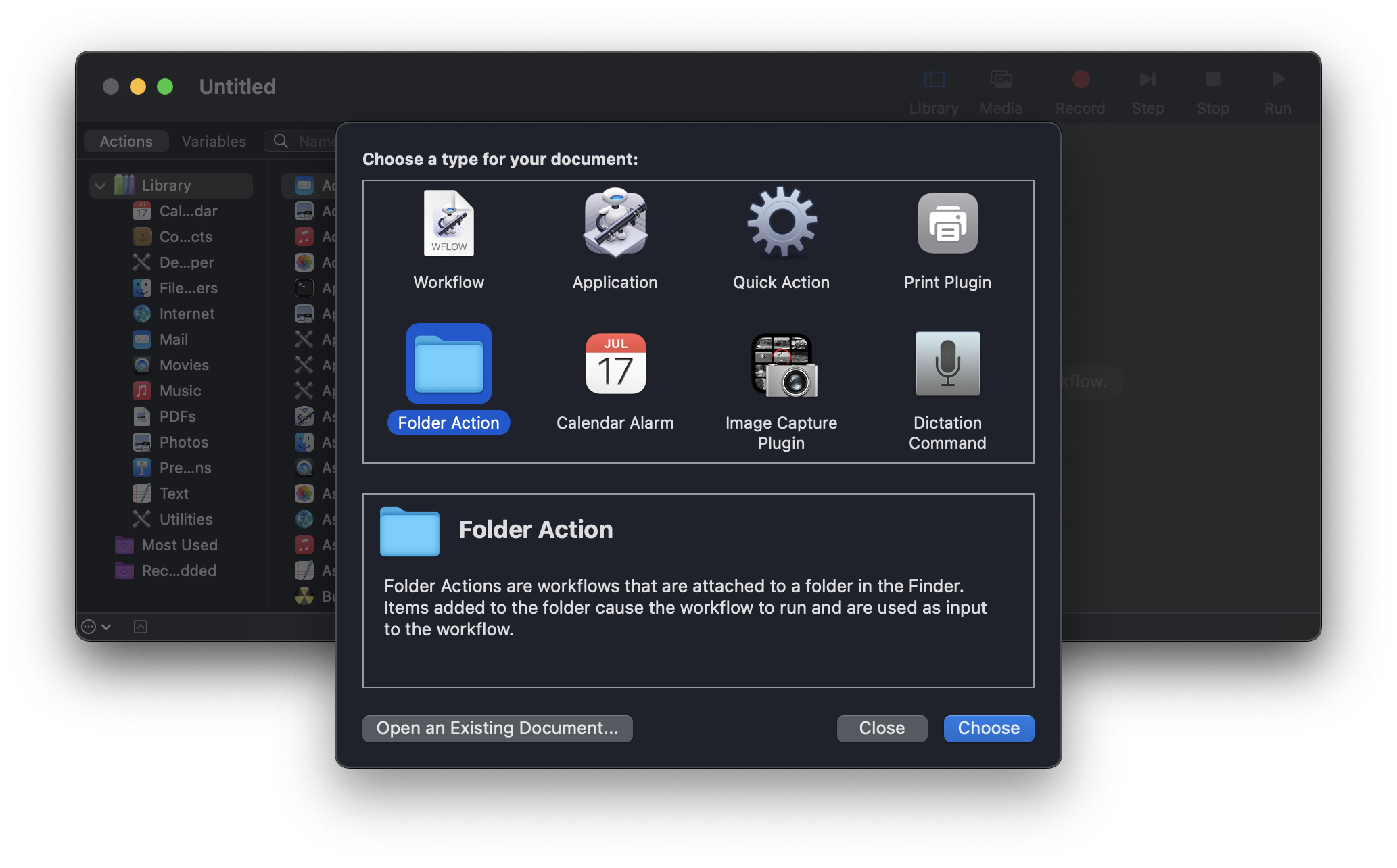
New. Choose “File Action” from the list of options:
Use the dropdown on the top of the next screen to select the folder where your screenshots are saved. The Automator script will be triggered whenever a new screenshot is added to that folder:
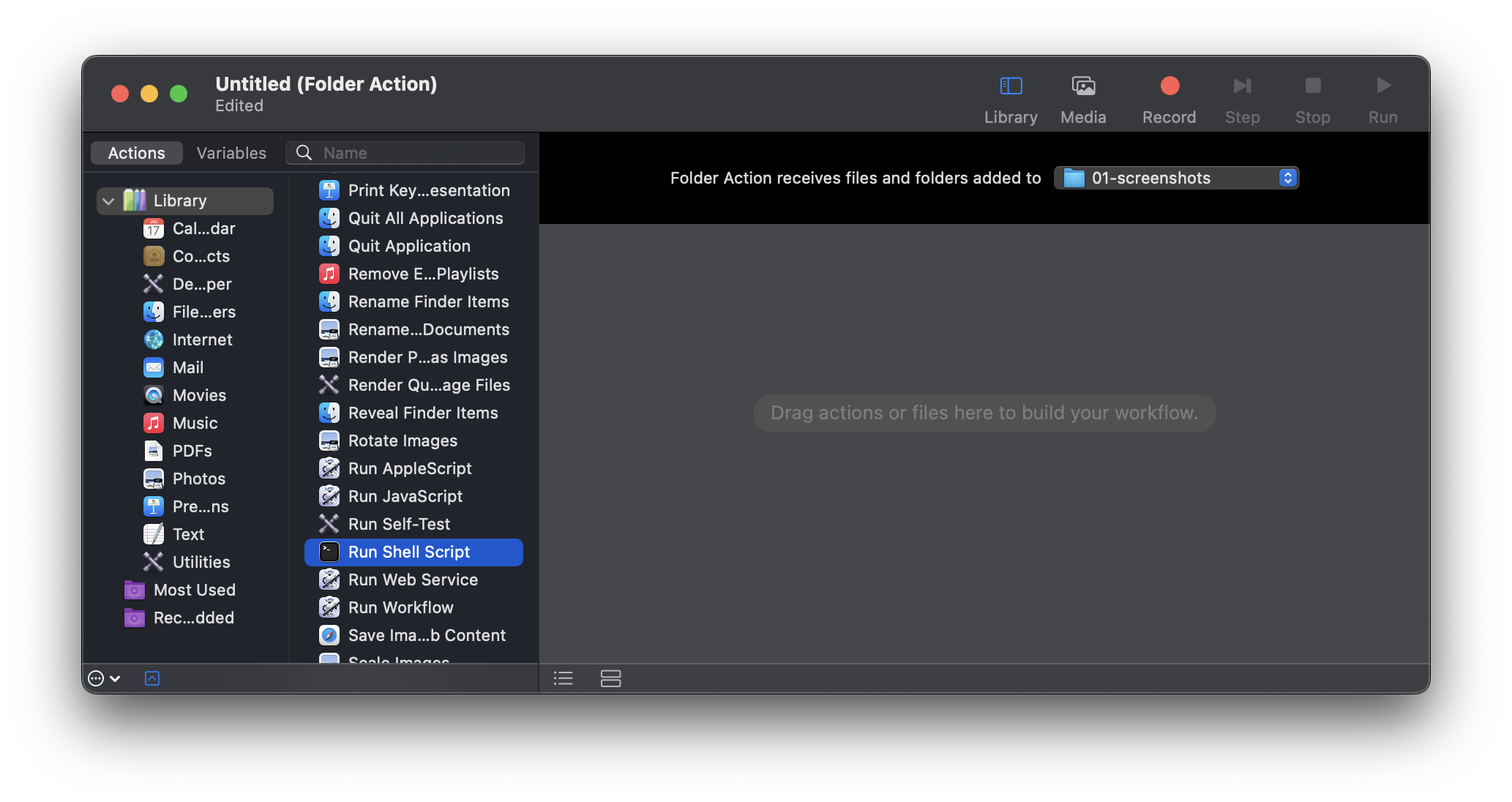
Next, scroll down in the left sidebar and find the “Run Shell Script” action. Drag it into the main pane on the right:
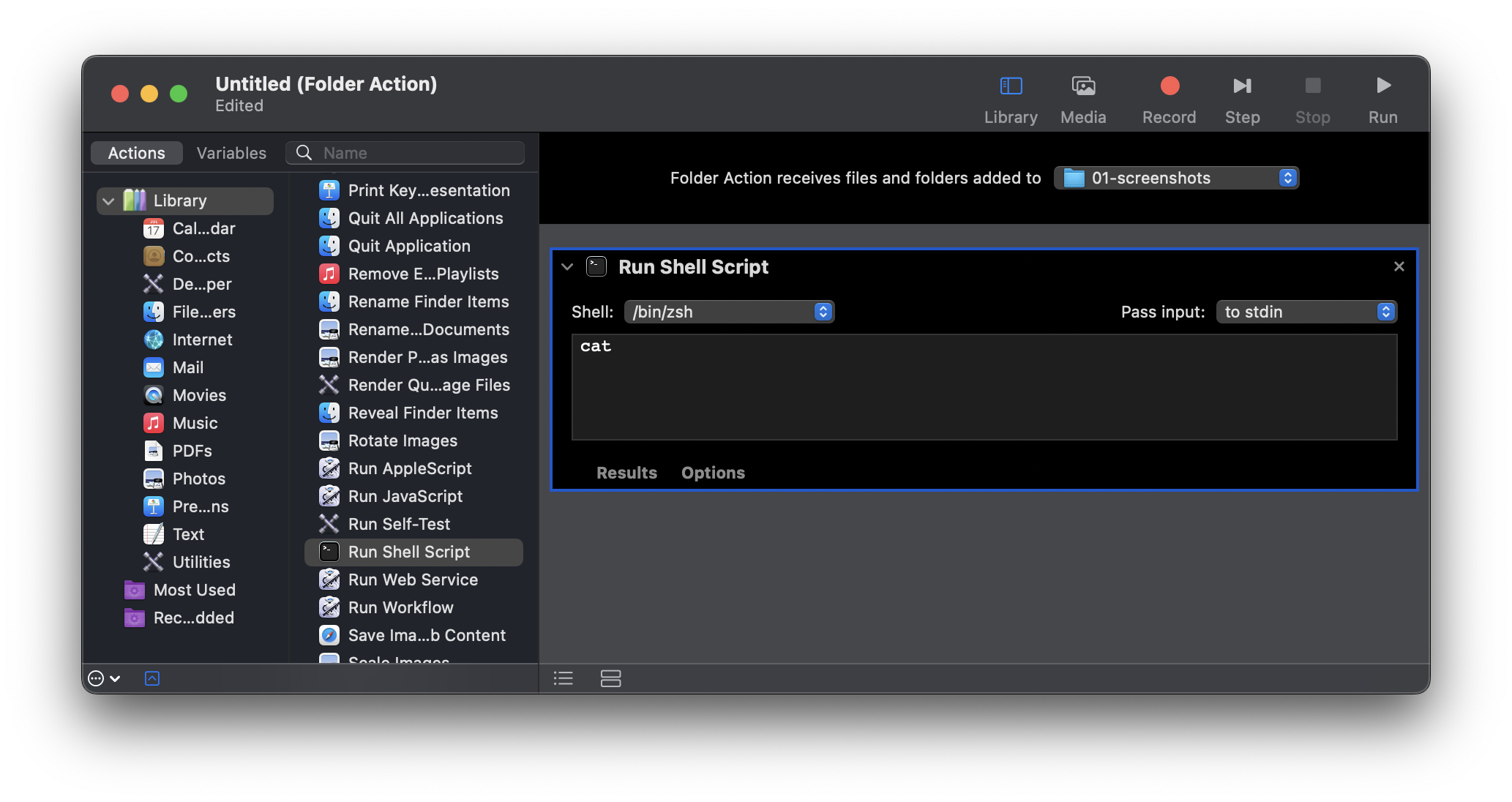
The defaults for this action are using Zsh and passing the inputs to stdin.
Change the inputs to be passed as arguments and switch the shell to bash. Now
we can edit the script itself:
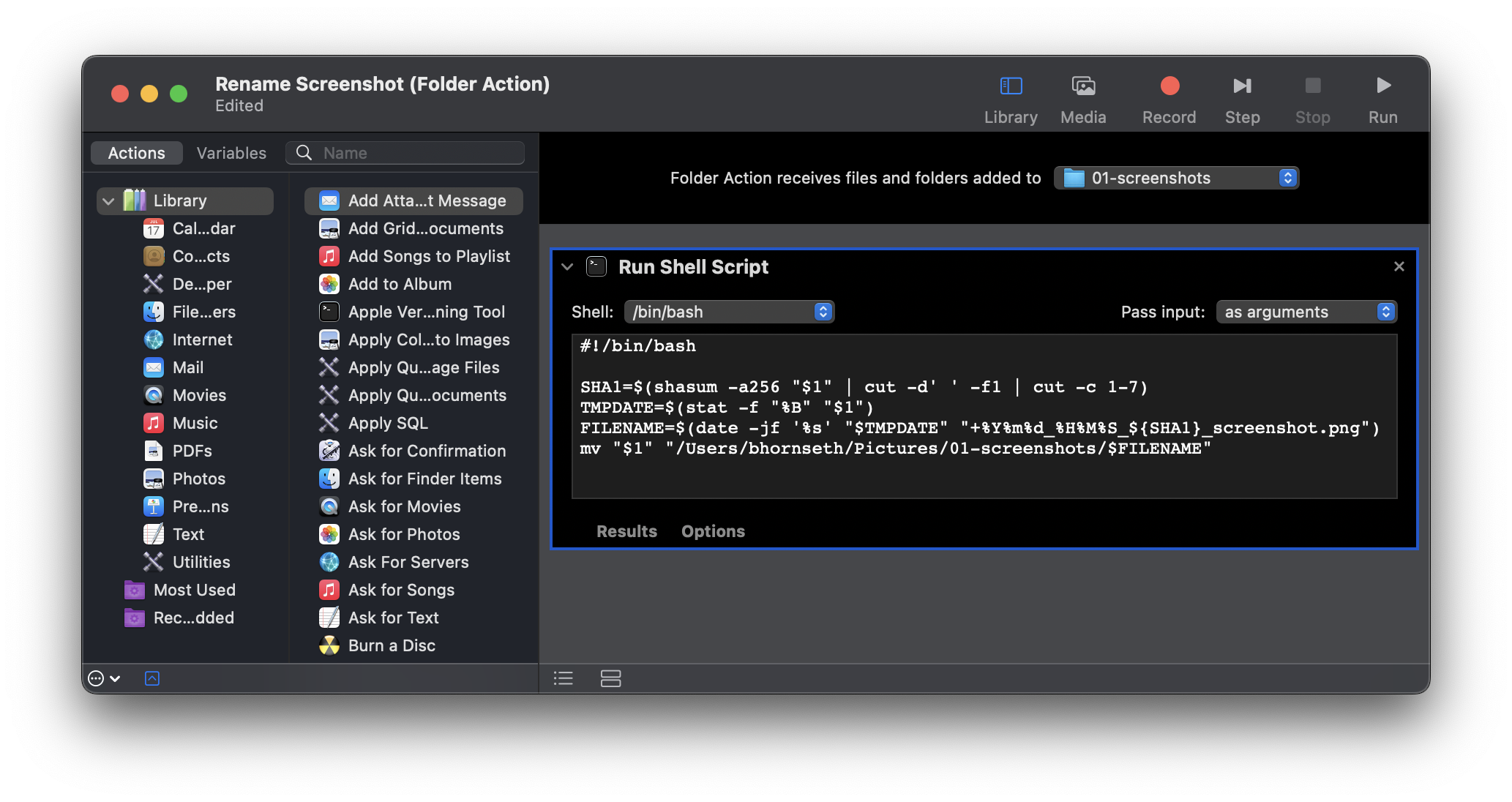
Here’s the script with annotations explaining what each line does:
#!/bin/bash
export PATH="/usr/bin:$PATH"

# Calculate a short SHA256 hash of the file contents
SHA1=$(shasum -a256 "$1" | cut -d' ' -f1 | cut -c 1-7)

# Get the file's creation timestamp in seconds since epoch format
TMPDATE=$(stat -f "%B" "$1")

# Format a new filename using the date, time, and hash
FILENAME=$(date -jf '%s' "$TMPDATE" "+%Y%m%d_%H%M%S_${SHA1}_screenshot.png")

# Rename the file from the original filename to the filename we just created
mv "$1" "/Users/bhornseth/Pictures/01-screenshots/$FILENAME"
That’s all there is to it! Now whenever you take a screenshot, it will be renamed to a shell-script friendly format. This could easily be extended to push the screenshot to an S3 bucket and copy the public URL to your clipboard making it super simple to share screenshots with teammates. The hash in the filename is there to both guarantee uniqueness and to make it more difficult for someone to enumerate all the screenshots if they were uploaded somewhere public.